2.3.60 Satellite Home Assistant
Handle:
homeassistant
URL: http://localhost:8123
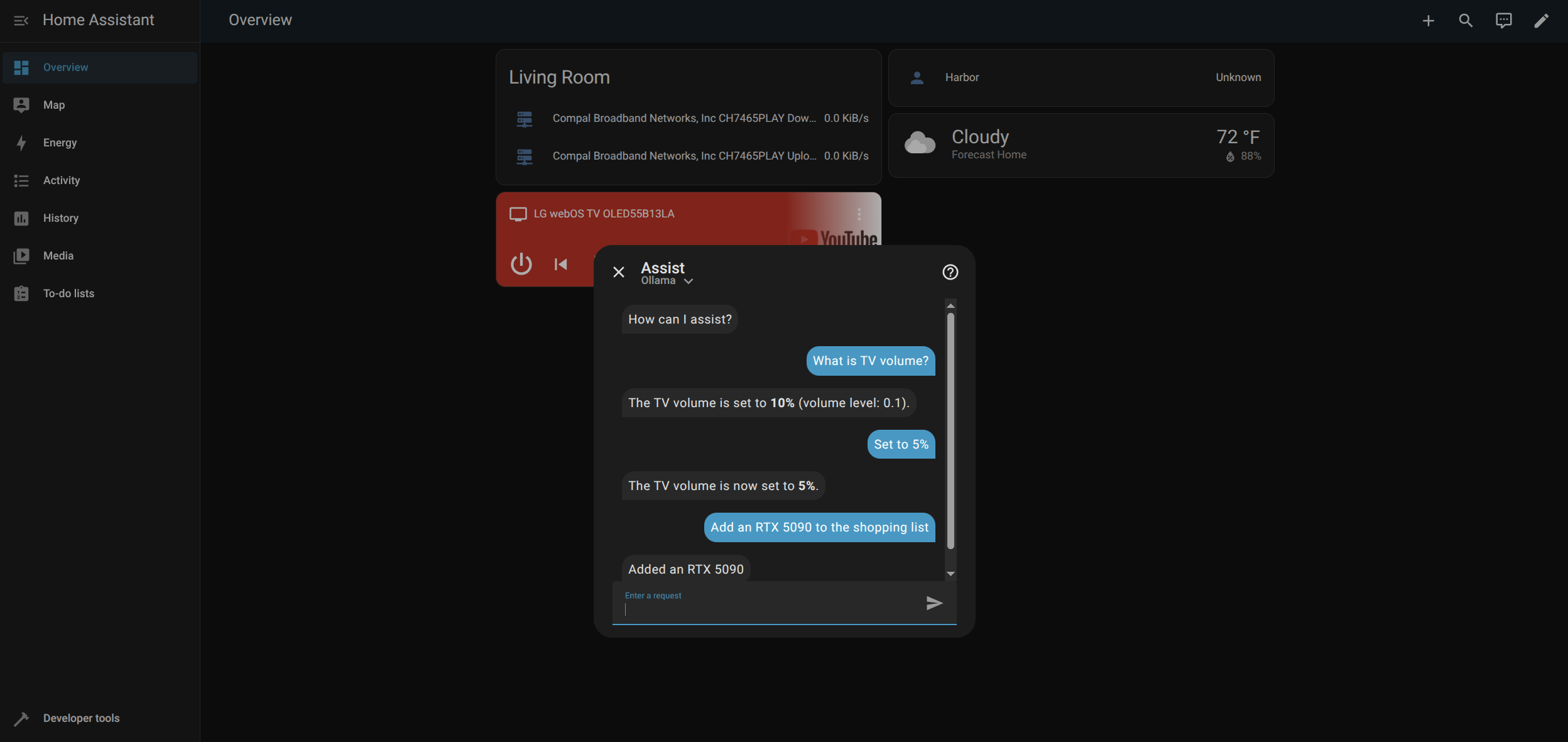
Home Assistant is a powerful open source home automation platform that puts local control and privacy first. It can integrate and control thousands of smart home devices from hundreds of different brands, enabling automation, monitoring, and voice control of your entire home. Unlike cloud-dependent solutions, Home Assistant runs entirely on your local network.
# Pull the image
harbor pull homeassistant

# Start the service
harbor up homeassistant

# Open in browser
harbor open homeassistant
First-time setup:
- On first start, Home Assistant will initialize and create its configuration
- Initial setup takes 1-2 minutes as it prepares the database and discovers network devices
- Navigate to http://localhost:8123 to complete the onboarding wizard
- Create your admin account and configure your home details
- Due to how Home Assistant works, Ollama integration requires manual setup after onboarding (see Integration with Other Harbor Services section below)
The following options can be set via harbor config or in homeassistant/override.env:
# Main web UI port (Note: port shown for reference, service uses host networking)
HARBOR_HOMEASSISTANT_HOST_PORT        34621

# Docker image settings
HARBOR_HOMEASSISTANT_IMAGE            ghcr.io/home-assistant/home-assistant
HARBOR_HOMEASSISTANT_VERSION          stable

# Configuration directory
HARBOR_HOMEASSISTANT_WORKSPACE        ./homeassistant

# Timezone configuration (affects automations and logs)
HARBOR_HOMEASSISTANT_TIMEZONE         America/Los_Angeles
Important: Timezone Configuration
Home Assistant requires a valid timezone to function correctly. Set your timezone using the TZ database name:
harbor config set homeassistant.timezone "America/New_York"
harbor config set homeassistant.timezone "Europe/London"
harbor config set homeassistant.timezone "Asia/Tokyo"
This affects:
- Automation scheduling
- Log timestamps
- Energy dashboard
- Calendar integrations
Home Assistant's configuration can be customized by editing files in $(harbor home)/homeassistant/config/:
-
configuration.yaml- Main configuration file -
automations.yaml- Automation definitions -
scripts.yaml- Script definitions -
scenes.yaml- Scene definitions -
secrets.yaml- Sensitive data storage
After editing configuration files, restart the service:
harbor restart homeassistantHome Assistant automatically discovers compatible devices on your network using:
- mDNS/Zeroconf: For network-attached devices
- SSDP: For UPnP devices
- Bluetooth: For BLE devices (requires host Bluetooth access)
- USB: For Zigbee/Z-Wave controllers (requires device passthrough)
To connect USB devices (Zigbee, Z-Wave, etc.), you'll need to modify the compose file to add device mappings. For example:
# In compose.homeassistant.yml, add after volumes:
devices:
  - /dev/ttyUSB0:/dev/ttyUSB0 # Zigbee/Z-Wave USB stick
  - /dev/ttyACM0:/dev/ttyACM0 # Alternative USB device
Find your device path with: ls -la /dev/tty*
While Home Assistant uses host networking, you can still integrate it with other Harbor services using localhost or your host's IP address:
Example: Using Harbor's Ollama for AI features
Home Assistant supports conversation AI via the Ollama integration:
- Start both services:
harbor up homeassistant ollama - In Home Assistant, go to Settings → Devices & Services → Add Integration
- Search for "Ollama" and select it
- Configure with:
- URL:
http://localhost:33821(Harbor's Ollama port) - Model: Use one from
harbor ollama list(e.g.,llama3.2:3b)
- URL:
- Create a conversation agent in Home Assistant
Example: Text-to-Speech with Harbor's TTS
Home Assistant can use external TTS services via the REST TTS platform:
- Start TTS service:
harbor up tts - Edit
homeassistant/config/configuration.yaml:
tts:
  - platform: rest
resource: http://localhost:33861/api/tts-
./homeassistant/config- Configuration files, automations, scripts -
/etc/localtime- System timezone (read-only, mounted from host)
Backup Considerations:
- Back up the entire
homeassistant/configdirectory regularly - Contains all configurations, history, and user data
- Consider using Home Assistant's built-in backup feature via UI
Cannot access Home Assistant at localhost:8123:
- Check service is running:
harbor ps homeassistant - View logs:
harbor logs homeassistant - Verify port 8123 is not in use:
lsof -i :8123(Linux/macOS) - Wait for initialization to complete (1-2 minutes on first start)
Device discovery not working:
- Ensure
network_mode: hostis set in the compose file - Check your firewall allows mDNS (port 5353)
- Some devices require manual integration configuration
Bluetooth devices not detected:
- By default, Bluetooth management is disabled (see "Advanced: Enabling Bluetooth Support")
- To enable: Add NET_ADMIN and NET_RAW capabilities to compose file
- Check host Bluetooth is working:
bluetoothctl list - May require host Bluetooth service to be running
Configuration errors after editing YAML:
- Check configuration: Go to Developer Tools → YAML → Check Configuration
- View detailed errors in: Settings → System → Logs
- Restore from automatic backup in
homeassistant/config/.storage/backups/
Permission errors on Linux:
- Ensure the homeassistant directory is writable:
chmod -R 755 homeassistant/config
- Check file ownership matches your user
Cannot connect USB devices:
- Add device mapping to compose file (see Device Discovery section)
- Check device permissions:
ls -la /dev/ttyUSB* - May need to add user to
dialoutgroup:sudo usermod -a -G dialout $USER
For more help, see the Home Assistant Documentation or join the Community Forum.