LLM Configuration
This tutorial will detail how to configure various large language models in AionUi, including Gemini, OpenAI, ModelScope, OpenRouter and other platforms, as well as advanced features like multi-API key rotation.
AionUi supports 25+ LLM platforms, including official platforms, cloud providers, Chinese platforms, and international platforms. Each platform has different configuration methods:
Official Platforms
- Gemini - API Key / Google Login | ✅ Multi-Key Support | Image generation, tool calling
- Gemini (Vertex AI) - API Key | ✅ Multi-Key Support | Enterprise-grade AI services
- OpenAI - API Key | ✅ Multi-Key Support | Function calling, image generation
- Anthropic - API Key | ✅ Multi-Key Support | Claude series models
Cloud Providers
- AWS Bedrock - Access Key / Profile | ❌ Multi-Key Support | AWS enterprise AI services
- New API - API Key | ✅ Multi-Key Support | Unified multi-model gateway
Chinese Platforms
- Dashscope (Qwen) - API Key | ✅ Multi-Key Support | Qwen series
- Zhipu - API Key | ✅ Multi-Key Support | Zhipu AI
- Moonshot (China) - API Key | ✅ Multi-Key Support | Moonshot (China)
- Moonshot (Global) - API Key | ✅ Multi-Key Support | Moonshot (Global)
- Qianfan - API Key | ✅ Multi-Key Support | Baidu Qianfan
- Hunyuan - API Key | ✅ Multi-Key Support | Tencent Hunyuan
- Lingyi - API Key | ✅ Multi-Key Support | Lingyi Wanwu
- ModelScope - API Key | ✅ Multi-Key Support | ModelScope community
- InfiniAI - API Key | ✅ Multi-Key Support | InfiniAI
- Ctyun - API Key | ✅ Multi-Key Support | China Telecom Cloud
- StepFun - API Key | ✅ Multi-Key Support | StepFun
International Platforms
- DeepSeek - API Key | ✅ Multi-Key Support | DeepSeek models
- MiniMax - API Key | ✅ Multi-Key Support | MiniMax AI
- OpenRouter - API Key | ✅ Multi-Key Support | Multi-model aggregation gateway
- SiliconFlow-CN - API Key | ✅ Multi-Key Support | SiliconFlow (China)
- SiliconFlow - API Key | ✅ Multi-Key Support | SiliconFlow (Global)
- xAI - API Key | ✅ Multi-Key Support | xAI Grok models
- Ark - API Key | ✅ Multi-Key Support | Volcengine Ark
- Poe - API Key | ✅ Multi-Key Support | Poe platform
Custom Platform
- Custom - API Key | ✅ Multi-Key Support | OpenAI-compatible interface (supports Ollama, LM Studio, and other local models)
- No API Key Required: Direct Google account login
- Auto Update: Token automatically refreshes, no manual maintenance
- Secure & Reliable: Uses OAuth 2.0 standard authentication
- Complete Features: Supports all Gemini functionality
-
Enter Gemini Settings
- Click the "Settings" icon in the left sidebar
- Select "Gemini Settings"
-
Google Login
- Click the "Google Login" button
- Complete Google account login in the popup browser window
- Authorize AionUi to access your Google account
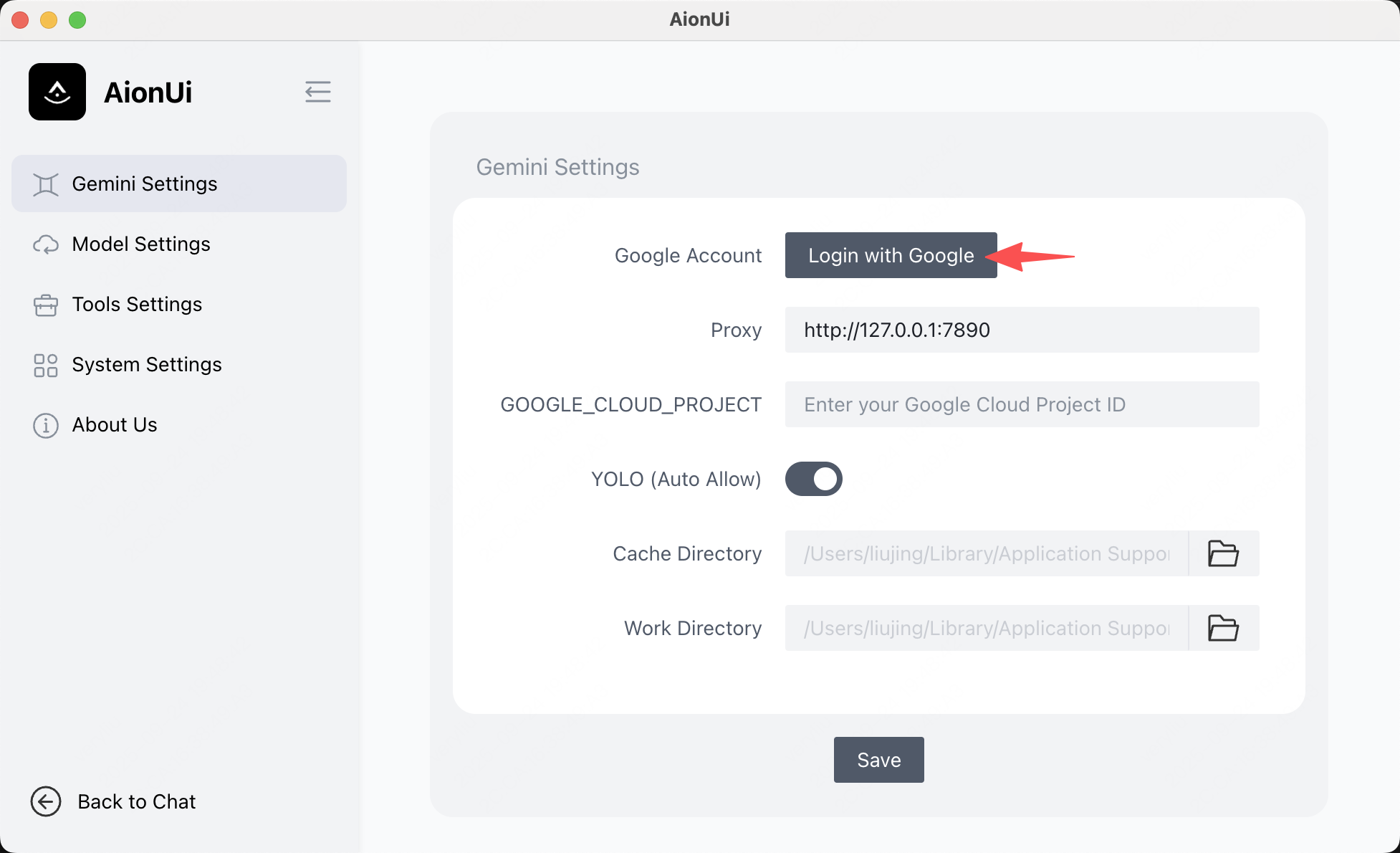
-
Verify Login Status
- After successful login, the interface will display your Google account information
- You can click "Logout" button to switch accounts

If you encounter problems with Google login, try the following solutions:
- VPN Setup: It's recommended to set VPN to US region
- Proxy Configuration: Fill in proxy address in Gemini settings
- Network Check: Ensure stable network connection and normal access to Google services
- Solution: Need to create Google Cloud Project, detailed steps please refer to the "📋 Google Cloud Project ID Creation Detailed Tutorial" section in Getting Started Guide

-
Get Gemini API Key
- Visit Google AI Studio
- Login with Google account
- Create new API Key in "API Keys" page
-
Configure in AionUi
- Click the "Settings" icon in the left sidebar
- Select "Model Settings"
- Click "Add Model" button
- Select platform: Gemini
- Enter API Key
- System will automatically fetch available model list
New API is a unified multi-model gateway that aggregates access to various LLM models.
-
Get New API Key
- Visit New API GitHub to learn about deployment
- Or use an existing New API service
- Get API Key
-
Configure in AionUi
- Select platform: New API
- Enter Base URL (New API service address)
- Enter API Key
- Select models (supports multiple protocols: OpenAI, Gemini, Anthropic)
- Optional: Configure protocol overrides for specific models (modelProtocols)
💡 Tip: New API supports configuring different protocols for different models, e.g., Gemini models use
geminiprotocol, Claude models useanthropicprotocol.
AWS Bedrock is AWS's enterprise AI service platform, supporting multiple authentication methods.
-
Prepare AWS Credentials
-
Method 1: Access Key
- Create a user in AWS IAM and generate Access Key ID and Secret Access Key
- Ensure the user has Bedrock access permissions
-
Method 2: Profile
- Configure AWS CLI Profile locally (
aws configure --profile <profile-name>) - Use the configured Profile name
- Configure AWS CLI Profile locally (
-
Method 1: Access Key
-
Configure in AionUi
- Select platform: AWS Bedrock
- Select authentication method: Access Key or Profile
-
If selecting Access Key:
- Enter AWS Region (e.g.,
us-east-1) - Enter Access Key ID
- Enter Secret Access Key
- Enter AWS Region (e.g.,
-
If selecting Profile:
- Enter AWS Region
- Enter Profile name (AWS CLI Profile configured locally)
- System will automatically fetch available Claude model list
Supported AWS Regions:
-
us-east-1- US East (N. Virginia) -
us-west-2- US West (Oregon) -
eu-west-1- Europe (Ireland) -
eu-central-1- Europe (Frankfurt) -
ap-southeast-1- Asia Pacific (Singapore) -
ap-northeast-1- Asia Pacific (Tokyo) -
ap-southeast-2- Asia Pacific (Sydney) -
ca-central-1- Canada (Central)
Vertex AI is Google Cloud's enterprise AI service platform.
-
Get Vertex AI Credentials
- Create a project in Google Cloud Console
- Enable Vertex AI API
- Create a service account and download JSON key file
- Or use Application Default Credentials (ADC)
-
Configure in AionUi
- Select platform: Gemini (Vertex AI)
- Enter Google Cloud Project ID
- Enter API Key (or configure service account)
- System will automatically fetch available Vertex AI model list
Custom platform allows you to configure any model service that supports OpenAI-compatible interface, including locally deployed models.
-
Get API Key
- Visit the corresponding platform's API Key management page
- Login to account and create new API Key
- Copy API Key for later use
-
Configure in AionUi
- Select platform: Custom
- Enter corresponding Base URL
- Enter API Key
- Select models to use
Common Platform Base URLs:
-
OpenAI:
https://api.openai.com/v1 -
Anthropic:
https://api.anthropic.com/v1 -
xAI:
https://api.x.ai/v1 -
DeepSeek:
https://api.deepseek.com/v1 -
Moonshot (China):
https://api.moonshot.cn/v1 -
Moonshot (Global):
https://api.moonshot.ai/v1 -
Zhipu:
https://open.bigmodel.cn/api/paas/v4 -
Dashscope:
https://dashscope.aliyuncs.com/compatible-mode/v1 -
SiliconFlow-CN:
https://api.siliconflow.cn/v1 -
SiliconFlow:
https://api.siliconflow.com/v1 -
Ark:
https://ark.cn-beijing.volces.com/api/v3 -
Qianfan:
https://qianfan.baidubce.com/v2 -
Hunyuan:
https://api.hunyuan.cloud.tencent.com/v1 -
Lingyi:
https://api.lingyiwanwu.com/v1 -
Poe:
https://api.poe.com/v1 -
InfiniAI:
https://cloud.infini-ai.com/maas/v1 -
Ctyun:
https://wishub-x1.ctyun.cn/v1 -
StepFun:
https://api.stepfun.com/v1
Local Model Support:
-
Ollama:
http://localhost:11434/v1(local deployment) -
LM Studio:
http://localhost:1234/v1(local deployment)
AionUi provides multiple preset platforms. After selection, Base URL is automatically filled. You only need to enter the API Key.
Chinese Platform Configuration Examples:
-
Dashscope (Qwen)
- Visit Dashscope Console
- Create API Key
- In AionUi, select Dashscope, enter API Key
-
Zhipu (Zhipu AI)
- Visit Zhipu Open Platform
- Create API Key
- In AionUi, select Zhipu, enter API Key
-
Moonshot
- Visit Moonshot Console
- Create API Key
- In AionUi, select Moonshot (China) or Moonshot (Global), enter API Key
-
ModelScope
- Visit ModelScope
- Login with Alibaba Cloud account, create access token
- In AionUi, select ModelScope, enter API Key
International Platform Configuration Examples:
-
OpenRouter
- Visit OpenRouter
- Register account and create API Key
- In AionUi, select OpenRouter, enter API Key
- Supports access to various open-source and commercial models
-
DeepSeek
- Visit DeepSeek Console
- Create API Key
- In AionUi, select DeepSeek, enter API Key
-
SiliconFlow
- Visit SiliconFlow or SiliconFlow Global
- Create API Key
- In AionUi, select SiliconFlow-CN or SiliconFlow, enter API Key
💡 Tip: All preset platforms support multi-API key rotation. Simply enter multiple keys (comma or line break separated) in the API Key field.
AionUi supports automatic multi-API key rotation to improve service reliability and availability:
- Automatic Rotation: Automatically switch to next key when current key encounters errors
- Smart Blacklist: Failed keys are temporarily blacklisted for 90 seconds
- Error Recovery: Blacklisted keys automatically recover after expiration
- Load Balancing: Randomly select starting key to distribute request pressure
-
Enter Multiple Keys in API Key Field
sk-xxx1,sk-xxx2,sk-xxx3Or use line breaks:
sk-xxx1 sk-xxx2 sk-xxx3 -
Supported Platforms
- ✅ Gemini: Supports multi-key rotation
- ✅ Gemini (Vertex AI): Supports multi-key rotation
- ✅ OpenAI: Supports multi-key rotation
- ✅ Anthropic: Supports multi-key rotation
- ✅ Custom Platform: Supports multi-key rotation (using OpenAI-compatible interface)
- ✅ New API: Supports multi-key rotation
- ✅ All platforms using OpenAI-compatible interface: Supports multi-key rotation
- ModelScope, OpenRouter, Dashscope, DeepSeek, MiniMax, SiliconFlow, Zhipu, Moonshot, xAI, Ark, Qianfan, Hunyuan, Lingyi, Poe, InfiniAI, Ctyun, StepFun, etc.
- ❌ AWS Bedrock: Does not support multi-key rotation (uses AWS credential authentication)

-
Error Detection
- Detect errors like 401 (authentication failed), 429 (rate limit), 503 (service unavailable)
- Automatically add current key to blacklist
-
Automatic Switching
- Randomly select next key from available key list
- Update environment variables, reinitialize client
-
Blacklist Management
- Failed keys are blacklisted for 90 seconds
- Blacklisted keys automatically recover after expiration
- Avoid performance issues from frequent switching
A: Check methods:
- Can see configured platforms and models in model list
- Can select configured models in conversation interface
- Can receive normal replies when sending messages
A: Check points:
- Ensure key format is correct (comma or line break separated)
- Check if platform supports multi-key (supported platforms: Gemini, Vertex AI, OpenAI, Anthropic, New API, and all platforms using OpenAI-compatible interface)
- Check console logs to understand rotation status
- Note: AWS Bedrock does not support multi-key rotation as it uses AWS credential authentication instead of API Key
A: Possible reasons:
- API key invalid or expired
- Base URL configuration error
- Network connection issues
- Platform service temporarily unavailable
A: Switching methods:
- Select different models when starting a new conversation
- Model switching during current conversation is not currently supported
- System will remember your selection preferences
A: Check configuration:
- Ensure model supports
function_callingcapability - Re-save configuration and restart application
- Quick Start: Quick Start Guide
- Image Generation Configuration: Image Generation Setup
- Multi-Agent Mode Configuration: Multi-Agent Mode Setup
- Common Questions: FAQ
Need Help?
After configuration, you can enjoy multi-platform, multi-model AI experience!