Battle Board is a powerful initiative tracker and combat management system for Owlbear Rodeo. It transforms your tokens into a comprehensive combat interface with automatic range overlays, real-time distance calculations, health tracking, and advanced group management—all seamlessly integrated with your scene.
- Smart Initiative System with decimal tie-breaking
- Automatic Range Overlays for movement and attack ranges
- Real-time Distance Calculations between all tokens with elevation support
- Elevation Tracking for flying creatures and vertical combat
- Advanced Group Management with staging capabilities
- Comprehensive Health Tracking with customizable player visibility
- Role-based Interface (separate GM and Player views)
- Math Input Support for quick HP adjustments
- Add tokens to your scene on the CHARACTER or MOUNT layer
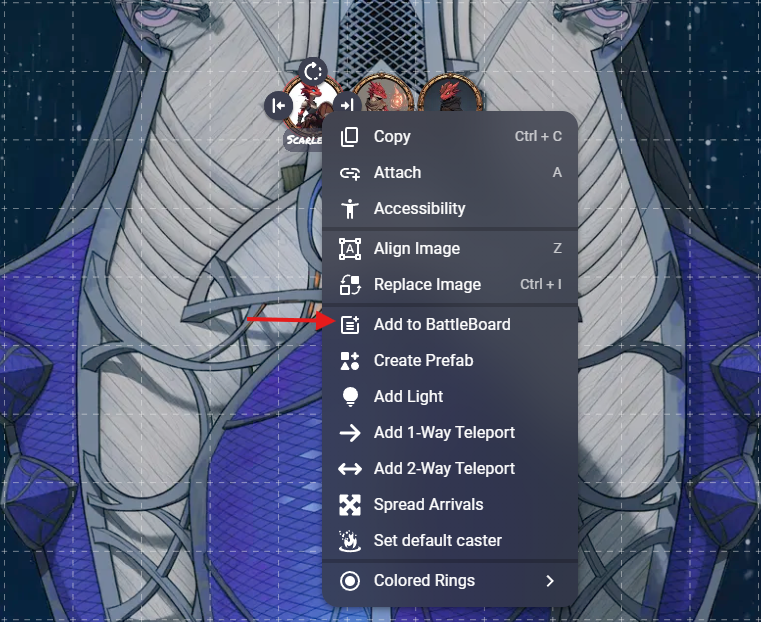
- Right-click any token → select "Add to Battle Board"
- Open the Battle Board sidebar from your extensions
- Click "Start" to begin initiative and start tracking turns
That's it! You now have a fully functional initiative tracker with automatic range overlays and distance calculations.
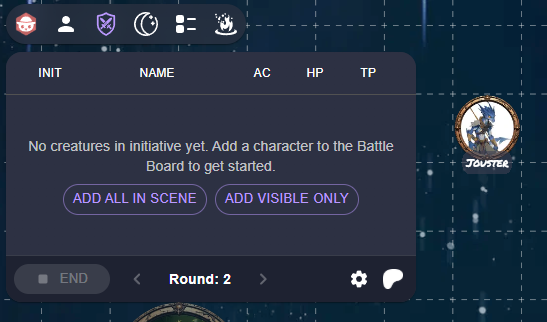
- Use "Add All in Scene" to quickly add multiple tokens
- Players and GM roll initiative normally - edit values by clicking on them
- Expand any row (click the chevron or name) to access advanced controls
- Hit "Start" when ready to begin combat
Context Menu Method:
- Right-click any CHARACTER or MOUNT token
- Select "Add to Battle Board" (for tokens not yet added)
- Select "Remove from Battle Board" (for tokens already added)
- Select "Set Elevation" to set the token's elevation for vertical combat
Bulk Add Methods:
- "Add All in Scene" - Adds every CHARACTER/MOUNT token
- "Add Visible Only" - Adds only tokens currently visible to players
After players and GMs roll initiative, Battle Board uses a sophisticated ordering system:
- Whole numbers first - Higher integers go before lower ones
- Decimals break ties - Lower decimals act first within the same integer
- Alphabetical fallback - Name-based sorting for exact ties
Example order: 15 → 14 → 13.1 → 13.5 → 13.9 → 12
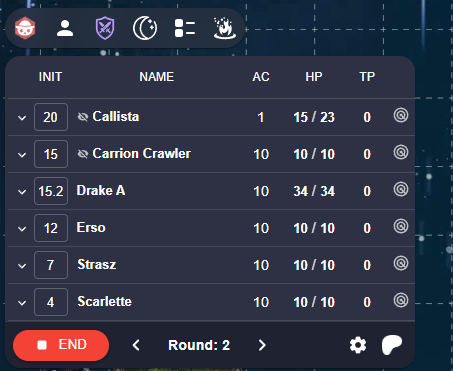
Using Decimals to Break Ties: When multiple creatures roll the same initiative, use decimals to establish order:
- Multiple creatures rolled
13: Assign13.1,13.2,13.3based on tie-breaker rules - Need to insert someone mid-combat? Use
13.5to place between existing13.2and14 - Boss with minions all on
15: Boss =15, Minions =15.1,15.2,15.3
- Start/End Combat - Activates the initiative system and begins tracking
- Next/Previous Turn - Cycles through initiative order
- Round Counter - Automatically increments when reaching the end of initiative
- Active Highlighting - Current turn is clearly marked with visual indicators

Every token row provides quick access to combat-relevant statistics:
- Initiative - Click to edit, supports decimals for tie-breaking
- Armor Class (AC) - Inline editing
- Hit Points - Separate Current/Max HP with temp HP tracking
- Name - Automatically syncs with token labels
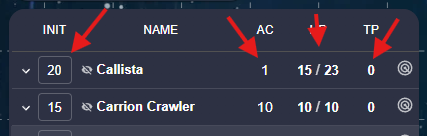
HP fields support mathematical expressions for quick combat adjustments:
- Damage: Type
-8to subtract 8 HP - Healing: Type
+5to add 5 HP - Complex: Type
25-3+2-1for multi-step calculations - Absolute: Type
15to set HP to exactly 15
Battle Board automatically calculates and displays health status:
- Healthy - Above 50% HP (green)
- Bloodied - Below 50% HP (yellow)
- Dying - 0 HP Player Characters (red)
- Dead - 0 HP NPCs (red)
Health visibility to players is fully configurable in settings.
Battle Board includes an intelligent concentration tracking system to help DMs remember to call for concentration checks:
DM View:
- Concentration Column - Enable in Display Settings → GM Columns
- Checkbox per Token - Mark which creatures are concentrating on spells
- Automatic Reminders - When a concentrating creature takes damage, an alert appears
- Smart DC Calculation - DC is automatically calculated as the higher of 10 or half damage taken
Alert System:
- Notifications appear as overlay alerts at the top of the screen
- Shows: "{Creature Name} Concentration Check, DC {XX}"
- Visible to both GM and players
- Dismissible by anyone - syncs across all clients when cleared
Player View:
- Concentrating creatures show a grey diamond icon with "C" after their name
- Same automatic alerts when concentration checks are needed
- Players can dismiss alerts for their own characters
Usage:
- Enable "Concentration" in Display Settings → GM Columns
- Check the concentration box for any creature maintaining a spell
- When that creature takes damage, an alert automatically appears
- Make the concentration save, then dismiss the alert
Example: A wizard with concentration checked takes 18 damage. Battle Board instantly displays: "Wizard Concentration Check, DC 10" (since half of 18 is 9, which is less than 10).
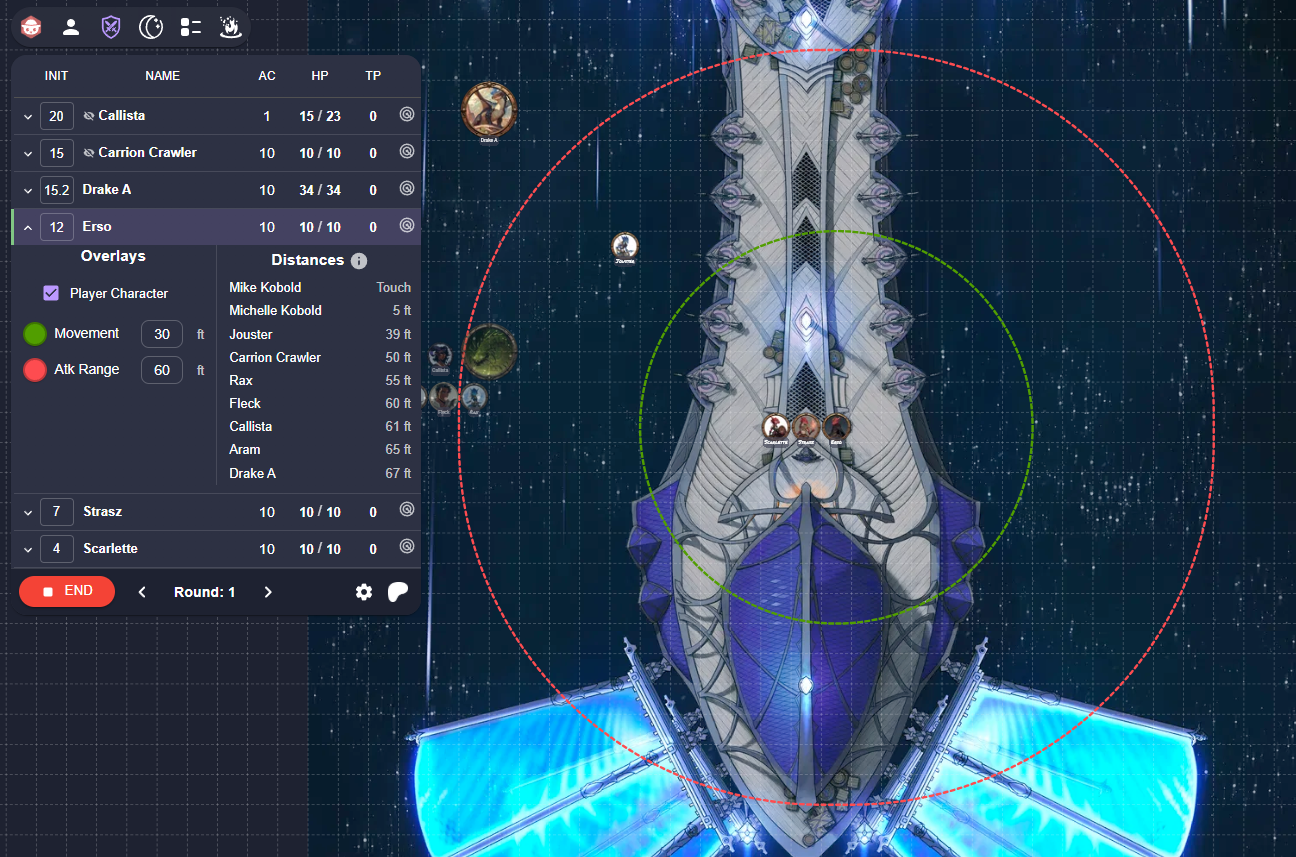
Battle Board can automatically draw range indicators around tokens:
Movement Rings (Green, Dashed):
- Unattached circles showing movement range
- Stay in place when tokens move (tactical positioning)
Attack Range Rings (Red, Dashed):
- Attached rounded rectangles following token shape
- Move with the token for dynamic range visualization
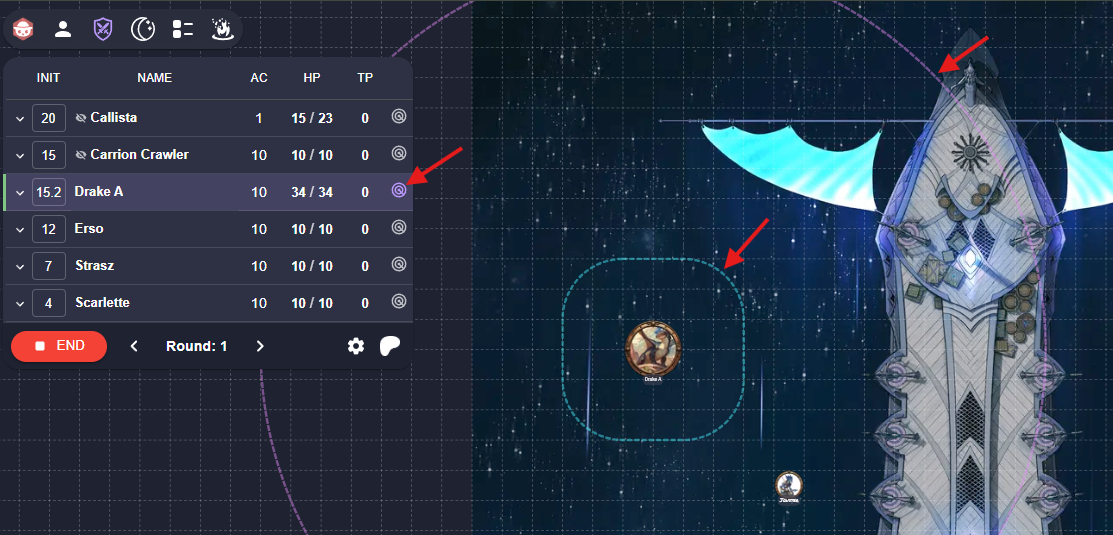
Each token has a radar icon for DM-only ring previews:
- Toggle individual token rings on/off
- Visible only to the GM
- Perfect for planning encounters
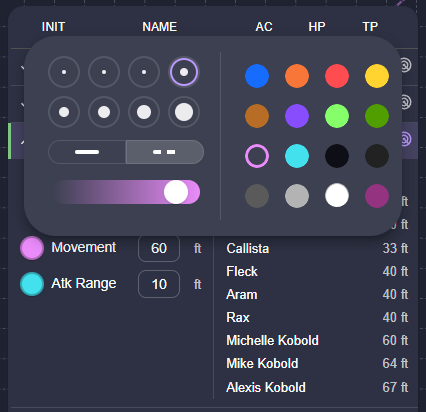
Expand any token row to access full styling controls:
Colors: 16-color palette picker
Line Weight: 8 thickness options (2-28px)
Patterns: Solid or dashed lines
Opacity: 0-100% transparency control
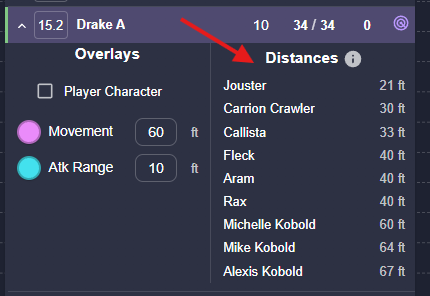
When you expand a token row, Battle Board calculates distances to all other tokens:
- Edge-to-edge measurement (not center-to-center)
- Sorted by proximity (closest first)
- "Touch" indicator for adjacent tokens (< 5ft)
- Real-time updates as tokens move
- Elevation-aware - Accounts for vertical distance when tokens have different elevations
- Distances account for token size (not just position)
- Uses Owlbear Rodeo's grid measurement system
- Supports all measurement modes (Chebyshev, Euclidean, etc.)
- Automatically includes elevation differences in distance calculations
Battle Board supports full 3D combat with elevation tracking for flying creatures, elevated platforms, and vertical encounters:
Setting Elevation via Context Menu:
- Right-click any token on the map
- Select "Set Elevation"
- Enter the elevation value (in feet)
- The token's elevation is saved and synced across all clients
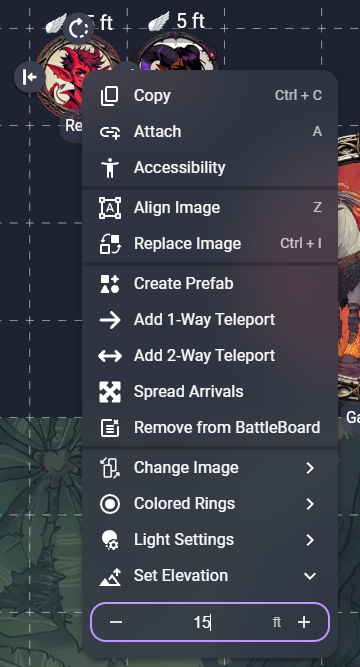
Elevation-Aware Distance Calculations:
- All distance calculations automatically account for elevation differences
- Perfect for flying creatures, elevated platforms, and multi-level encounters
- Works with all grid measurement modes
Common Use Cases:
- Flying Creatures - Set elevation for dragons, flying PCs, or hovering enemies
- Elevated Platforms - Track characters on balconies, towers, or cliffs
- Environmental Hazards - Track distance to flying hazards or elevated threats
Groups serve two primary functions in Battle Board:
Group monsters that act on the same initiative to streamline combat:
- All group members activate together - One "Next Turn" click activates the entire group
- Shared initiative - Edit once, applies to all members
- Reduced clicking - Manage 8 goblins as one group instead of 8 individual turns
Use groups with staging to pre-plan multiple encounters on a single map:
- Stage encounters in advance - Place tokens for later encounters and mark groups as "Staged"
- Quick encounter transitions - Activate staged groups when players move to new areas
- Reinforcement management - Stage reinforcement groups to activate mid-combat
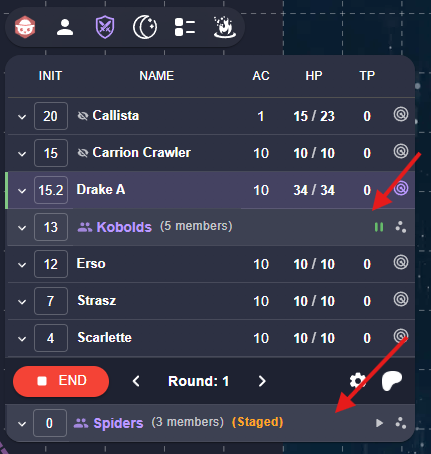
Creating Groups:
- Right-click any token row → "Add to Group"
- Select existing group or "Create New Group"
- All group members share initiative and act together
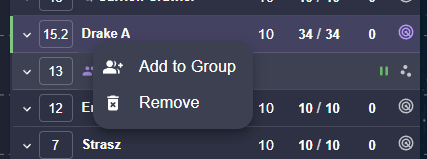
Group Controls: Groups appear as expandable sections in the initiative list:
- Group Initiative - Edit once, applies to all members
- Member Management - Add/remove tokens from groups
- Collective Actions - All members activate together on their turn
Active Groups: Participate normally in initiative order Staged Groups: Visible in the list but not participating in initiative
Staging Controls:
- Activate Group - Bring staged group into active initiative
- Stage Group - Remove group from active initiative (but keep visible in list)
- Visibility option - Optionally hide staged group tokens from players
- Ungroup - Moves all grouped participants from group to main initiative as individual items
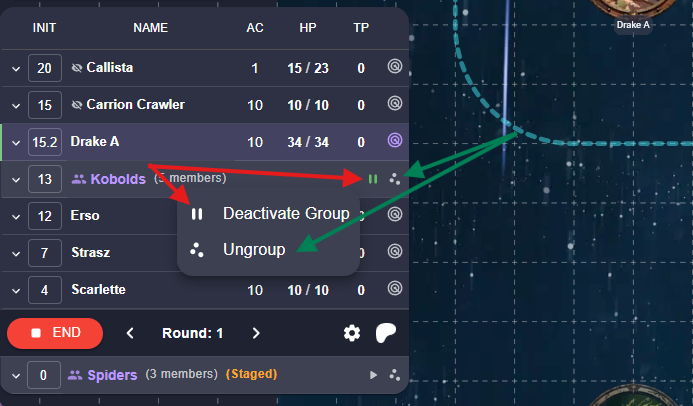
Common Use Cases:
- Room-by-room dungeons - Stage groups for each room on a large map
- Reinforcements - Stage backup monsters to arrive mid-combat
- Encounter phases - Stage different monster sets for multi-phase boss fights
- Environmental hazards - Stage trap or hazard groups with delayed activation
The GM sees the complete Battle Board interface with full control:
- Complete Initiative List with all tokens and stats
- Full Stat Editing capabilities
- Range Ring Controls and DM preview toggles
- Group Management tools
- Settings Access and customization options
- Combat Controls (Start/End, Next/Prev turn)
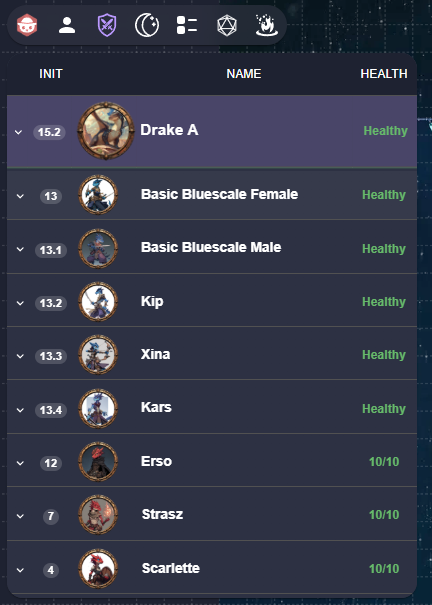
Players see a streamlined view focused on essential information:
When Combat Started:
- Initiative Order with creature names
- Health Information (if enabled by GM)
- Active Turn Indicator with visual highlighting
- Range Rings for active Player Characters (if enabled)
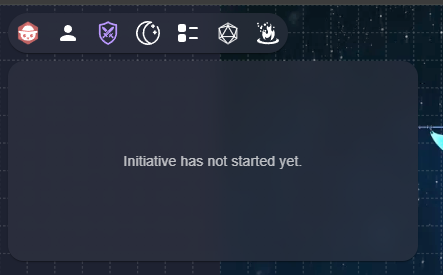
Before Combat Starts:
- Simple message: "Initiative has not started yet."
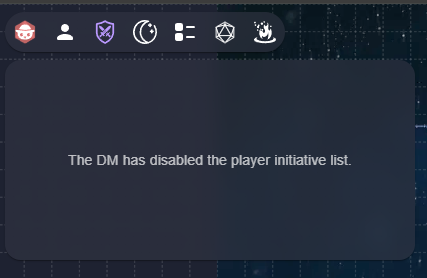
When Disabled:
- Clear message: "The DM has disabled the player initiative list."
The GM has granular control over what players can see:
- Initiative List Visibility - Show/hide entire list
- Health Information - None/Status/Numbers per creature type
- Range Rings - Enable for Player Characters during their turn
- Distance Information - Available in player expanded views
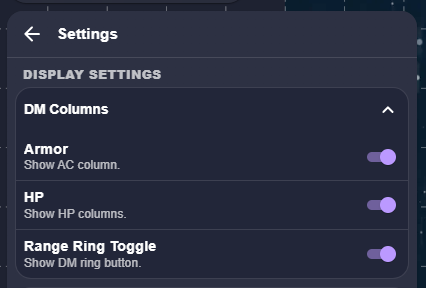
Control what information appears in your GM interface:
- Armor Class Column - Show/hide AC values
- Hit Points Columns - Toggle Current/Max/Temp HP display
- Concentration - Show/hide concentration tracking column with automatic reminders
- DM Ring Toggle - Show/hide the radar icon for ring previews
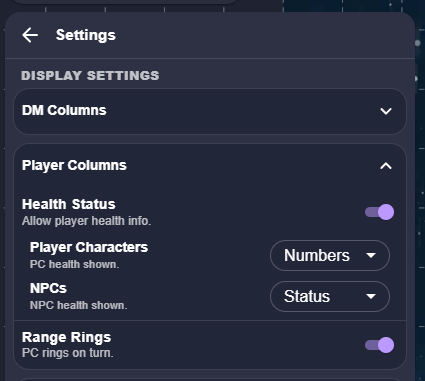
Configure what players can see:
Health Status Master Toggle:
- Enable/disable all health information for players
Per-Faction Health Display:
- Player Characters: None / Status / Numbers
- NPCs: None / Status / Numbers
Range Ring Display:
- Show movement/attack rings for active Player Characters
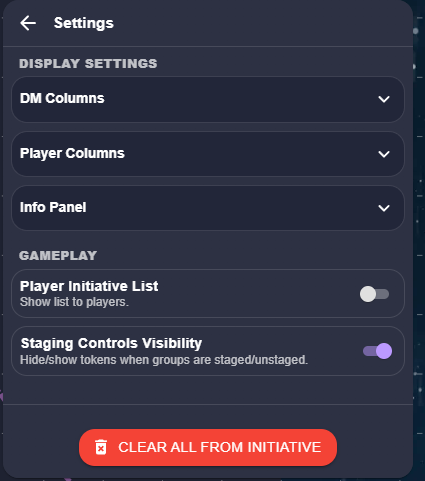
- Distance Calculations - Enable/disable the distance panel in expanded rows
- Player Initiative List - Show/hide the entire initiative interface from players
- Group Staging Controls Visibility - Whether staging/unstaging groups affects token visibility
- Player Editable Health - Allow players to edit HP and Temp HP for their own Player Characters
Player Editable Health: When enabled, players can manage health for their own characters directly in the initiative tracker:
- Players see editable HP and Temp HP fields for their Player Characters
- Same math input support as GM (type
-8for damage,+5for healing) - Changes sync instantly across all clients
- GM retains full editing control over all tokens
- Only affects tokens marked as Player Characters
- Helpful for games where players track their own health
Battle Board saves all information directly to your scene and token metadata:
- Stats and Health persist across sessions
- Initiative Order maintained between browser reloads
- Group Memberships stored permanently with your tokens
- Ring Preferences remembered per token
- Roll initiative normally - Battle Board tracks the results, doesn't replace rolling
- Use decimals for tie-breaking -
.1,.2,.3are easier to manage than complex decimals - Plan for insertions - Leave gaps like
15→13→11for mid-combat additions - Group similar creatures - All goblins can share initiative and act together
- Set Max HP first - Current HP auto-adjusts proportionally
- Use math input -
-8is faster than calculating23-8=15 - Track temp HP separately - It automatically layers on top of current HP
- Monitor status colors - Green/Yellow/Red provide quick visual health assessment
- Start with defaults - Green movement, red attack ranges work well
- Use DM previews for planning - Toggle rings to visualize encounter positioning
- Customize per creature type - Different colors for different monster abilities
- Test range interactions - Use distance calculations to verify attack possibilities
For Minion Management:
- Group identical creatures - All goblins, all zombies, etc.
- Keep bosses separate - Major creatures deserve individual initiatives
- Use shared initiative - Let groups of minions act on the same rolled initiative
- Reduce turn complexity - One "Next" click for an entire goblin warband
For Multi-Encounter Planning:
- Pre-place all encounters on large dungeon maps
- Stage groups by area - "Goblin Barracks", "Throne Room Guards", etc.
- Plan reinforcement timing - Stage backup waves for dramatic encounters
- Use visibility controls - Hide staged tokens until they're needed
- Bulk add tokens first, then organize into logical groups
- Use player visibility settings to reduce information overload
- Leverage distance calculations for quick tactical decisions
- Stage complex encounters in phases rather than overwhelming players
- Configure health visibility thoughtfully - Status often works better than raw numbers
- Enable PC rings for enhanced tactical play
- Keep initiative list enabled unless you need complete secrecy
- Communicate group actions - Let players know when minion groups are acting together
Battle Board is actively developed and supported. For feature requests, bug reports, or to support development:
- GitHub Repository: Battle Board on GitHub
- Support Development: Patreon - Missing Link Dev
- Community Support: Join discussions in the Owlbear Rodeo Discord
Battle Board transforms your Owlbear Rodeo sessions with initiative tracking and combat management. From quick skirmishes to complex multi-group encounters, Battle Board scales to meet your needs while maintaining the simplicity that makes Owlbear Rodeo great.